
Give This Section a Sidebar
Turn a big dropdown into a browsing sidebar
When to use this
A dropdown works well for a handful of pages. Once a section grows to a dozen or more -- a large reference area, a library of guides, anything with many same-level pages meant to be read one after another -- a hover dropdown gets crowded, and a visitor has to keep reopening it to move to the next page. A sidebar solves this: it stays on screen the whole time a visitor is browsing that section, so moving to the next page is one click, not open-menu-find-it-click every time.
See it live
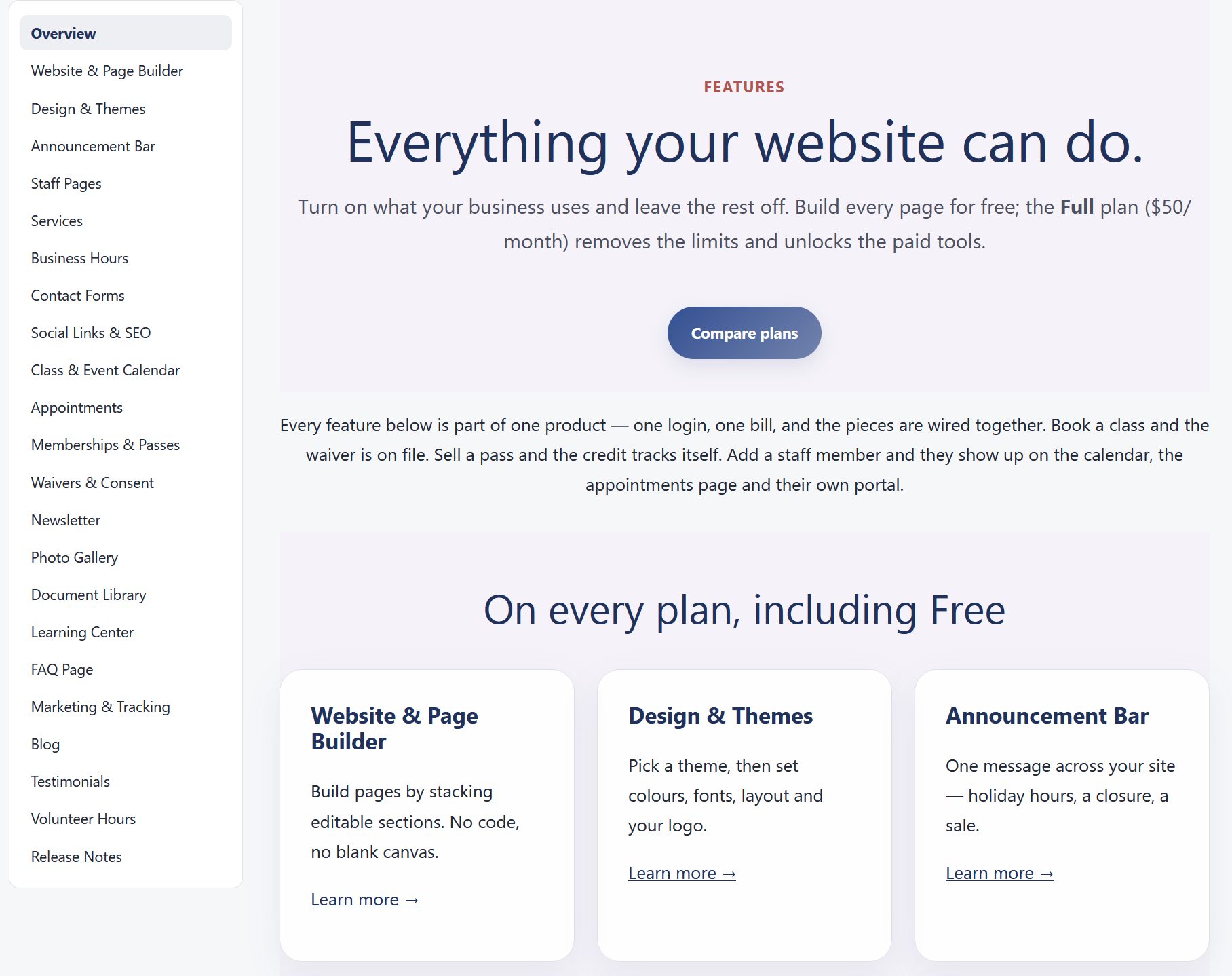
Your Shop Space uses this for its own Features section, which is a good example to see before setting one up: yourshopspace.com/features. Notice the list of topics staying on screen down the side as you click from one feature to the next, instead of a dropdown menu.
Step by step
- Go to Content -> Website Menu.
- Find the top-level item for the section you want (it must already have child pages nested under it -- see The Website Menu for how to add and nest items).
- Click Edit on that item.
- Scroll to the bottom of the form.
- Check Give This Section a Sidebar.
- Click Save Menu Item.
What actually changes
Two things happen at once. In the main menu, that item stops opening as a dropdown and becomes a plain link straight to its own page -- its child pages stay exactly where they are in Website Menu, they just stop showing there. On every page in that section (the top-level page and all of its children), a sidebar appears listing every page in the section, with the one being viewed highlighted, so visitors can jump straight to any other page in the section without leaving it.
A section can show its own page in the list too
If you want that same top-level page to also appear as an entry in the sidebar (the Features section on yourshopspace.com does this, with an entry called Overview), add one more child item under that same top-level item, pointing at that same page, with whatever label you want it to show. It will then appear in the sidebar list alongside the rest.
Turning it back off
Uncheck Give This Section a Sidebar on the same item and save. The dropdown comes back, the sidebar stops appearing, and nothing about the child pages themselves is lost or changed.