Categories, Manufacturers & Custom Fields
Three optional ways to organize your catalog
Categories and subcategories
Go to Store -> Categories to add one. Categories support one level of subcategories -- for example, "Computers" with "Desktops" and "Laptops" underneath -- which is enough structure for most catalogs without turning into a maze. Each category automatically becomes its own page in your shop with a matching sidebar entry, so a customer can browse by type.
Manufacturers
Go to Store -> Manufacturers to add a brand name. Unlike Categories, a Manufacturer is picked from a list rather than typed fresh on every product -- so "Apple" is always the same "Apple," never a duplicate like "apple" or "Aple" by accident. A customer can click a manufacturer's name on any product page to see everything else you carry from that same brand.
Custom Fields -- your own attributes
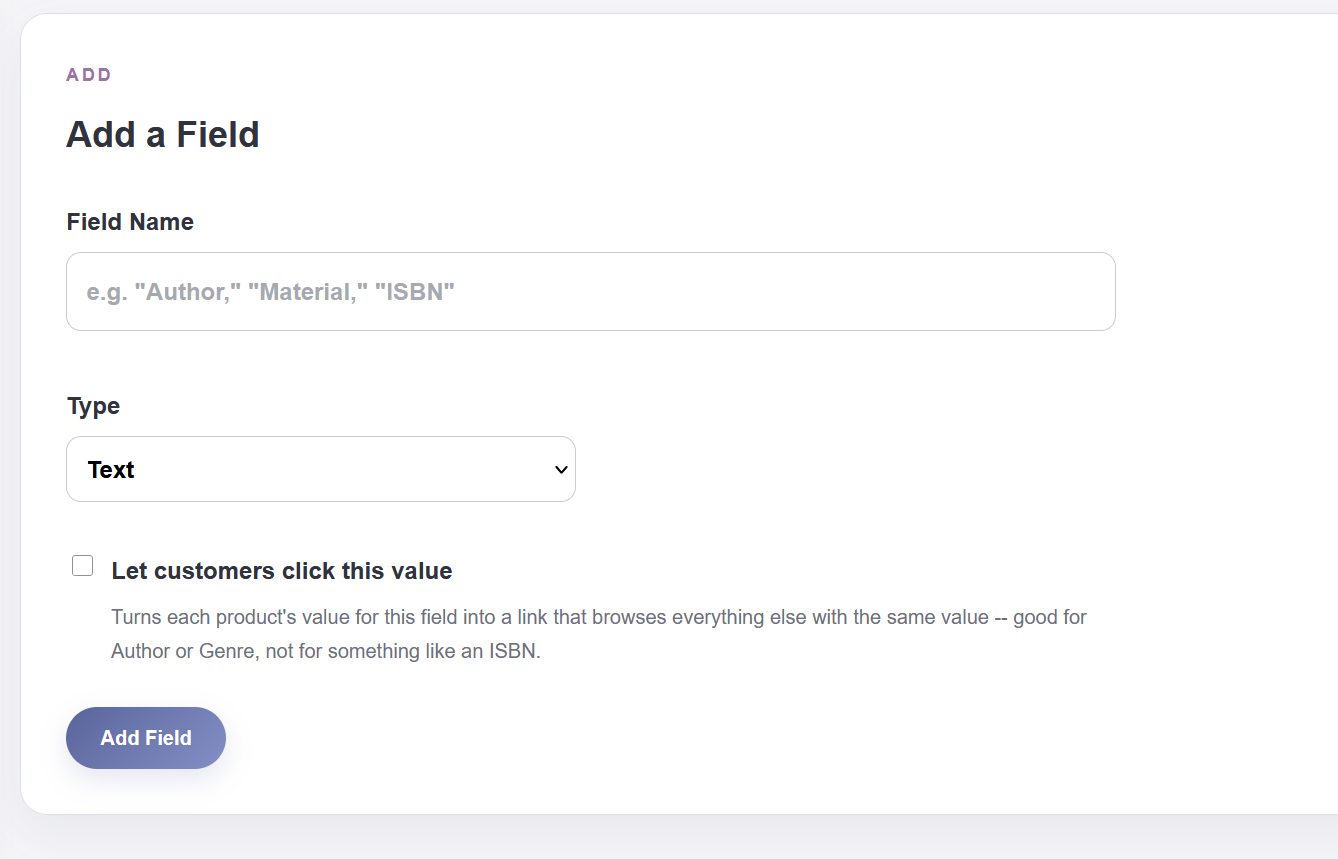
Go to Store -> Custom Fields to define an attribute your products need that is not already built in -- an Author for a bookstore, a Material for a furniture shop, a Size for apparel. Each field is Text or Number, and you can turn on Let customers click this value to make it work like Manufacturer -- clickable, browsable by anyone shopping the same value. Leave that off for something like an ISBN that nobody needs to browse by.
Custom Fields are genuinely flexible: define as many as your catalog needs, and each one adds its own input to every product's form.
All three are optional
A product does not need a Category, a Manufacturer, or any Custom Field filled in -- these exist purely to help customers browse a larger catalog. A shop with a handful of items may not need any of them at all.