
The Website Menu
What shows in your main navigation, and in what order
Adding, removing, and reordering items in your public Website Menu.
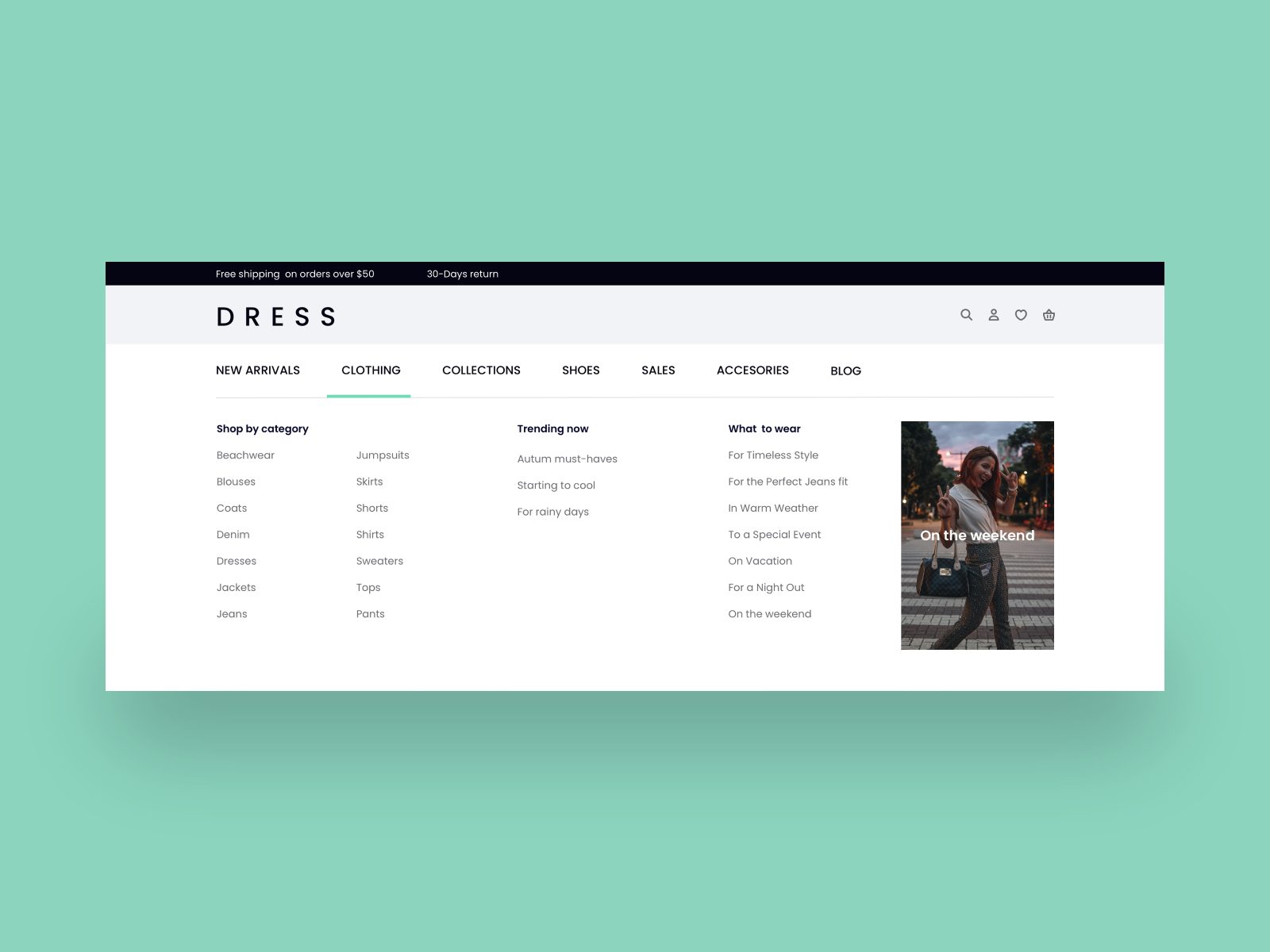
Step by step
- Go to Style & Design -> Website Menu.
- Click + Add Menu Item.
- Choose an existing page, or type a custom address (such as /calendar/ for an app that publishes its own page, or a full external link).
- Set a Label -- what visitors actually see in the menu.
- Drag to reorder, or nest one item under another to create a dropdown.
Apps do not add themselves to the menu
Turning on an app like Calendar, Blog, or Testimonials creates its public page automatically, but does not add a menu link for it -- add that yourself here if you want visitors to find it through navigation rather than a direct link elsewhere.