
Staff Availability
Weekly hours, date overrides, and self-service for staff
Setting a staff member's bookable hours as an admin, or letting them do it themselves in the Staff Portal.
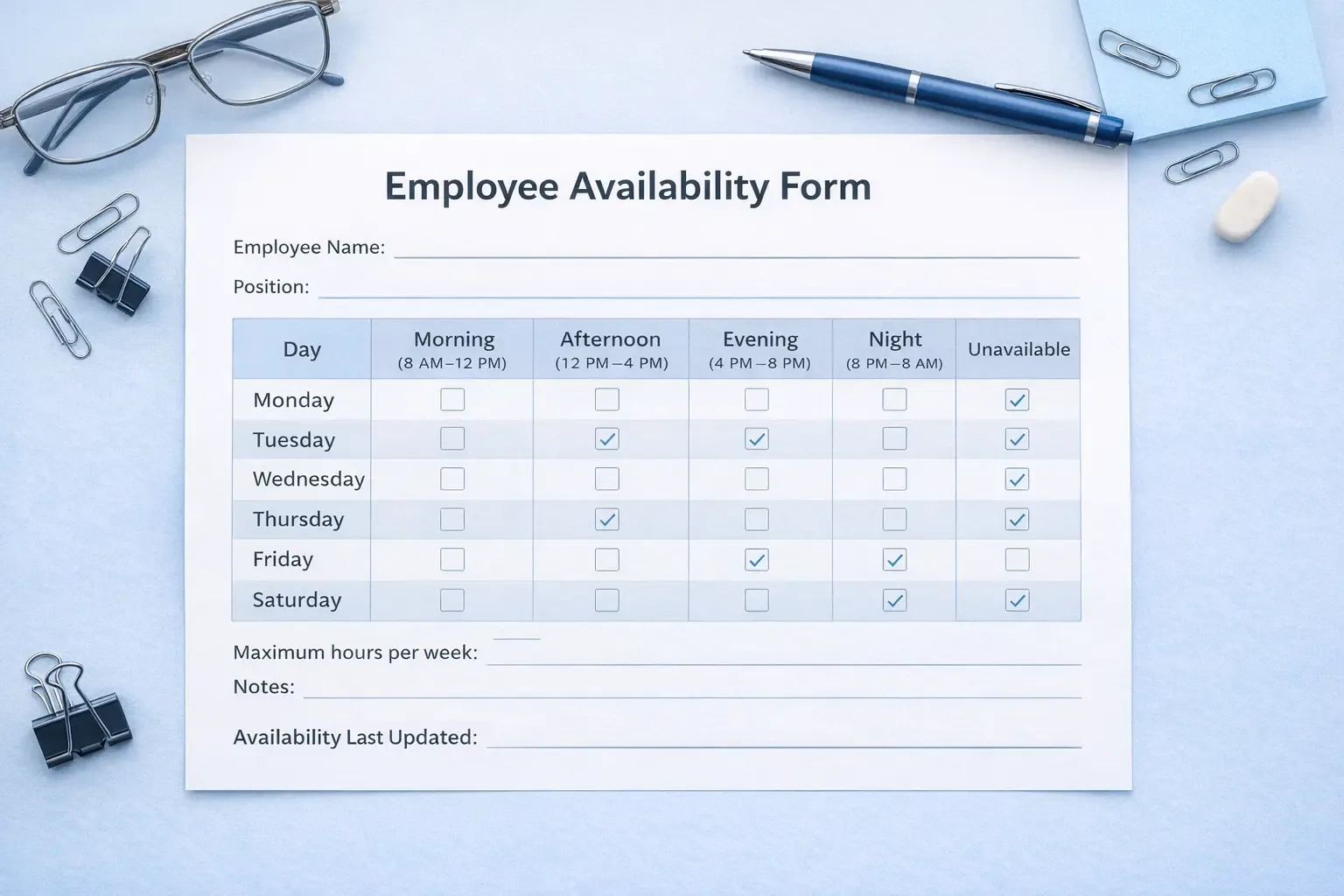
Setting availability as an admin
- Go to Scheduling & Bookings -> Appointments -> Availability.
- Choose a staff member.
- Under Weekly Hours, add one or more time windows per day (a staff member can have more than one window in a day, for a split shift).
- Under Date Overrides, add a specific date that is either fully unavailable (a day off), partially blocked, or has extra hours beyond the normal weekly pattern.
Staff can set their own hours too
A staff member with Staff Portal access can manage their own availability directly from My Availability in their portal at /staff-portal/ -- the exact same weekly-hours-and-overrides tool an admin uses, scoped to only themselves. See The Staff Portal in the Staff section for setting up their portal login.
What actually blocks a slot
A client only sees a slot as open if it falls inside that staff member is availability AND does not overlap an existing appointment (plus its buffer) AND, if you have turned this on, does not overlap a class they are teaching on the Calendar.