
Bulk Importing Products from a Spreadsheet
CSV import with an editable preview -- nothing saves until you confirm
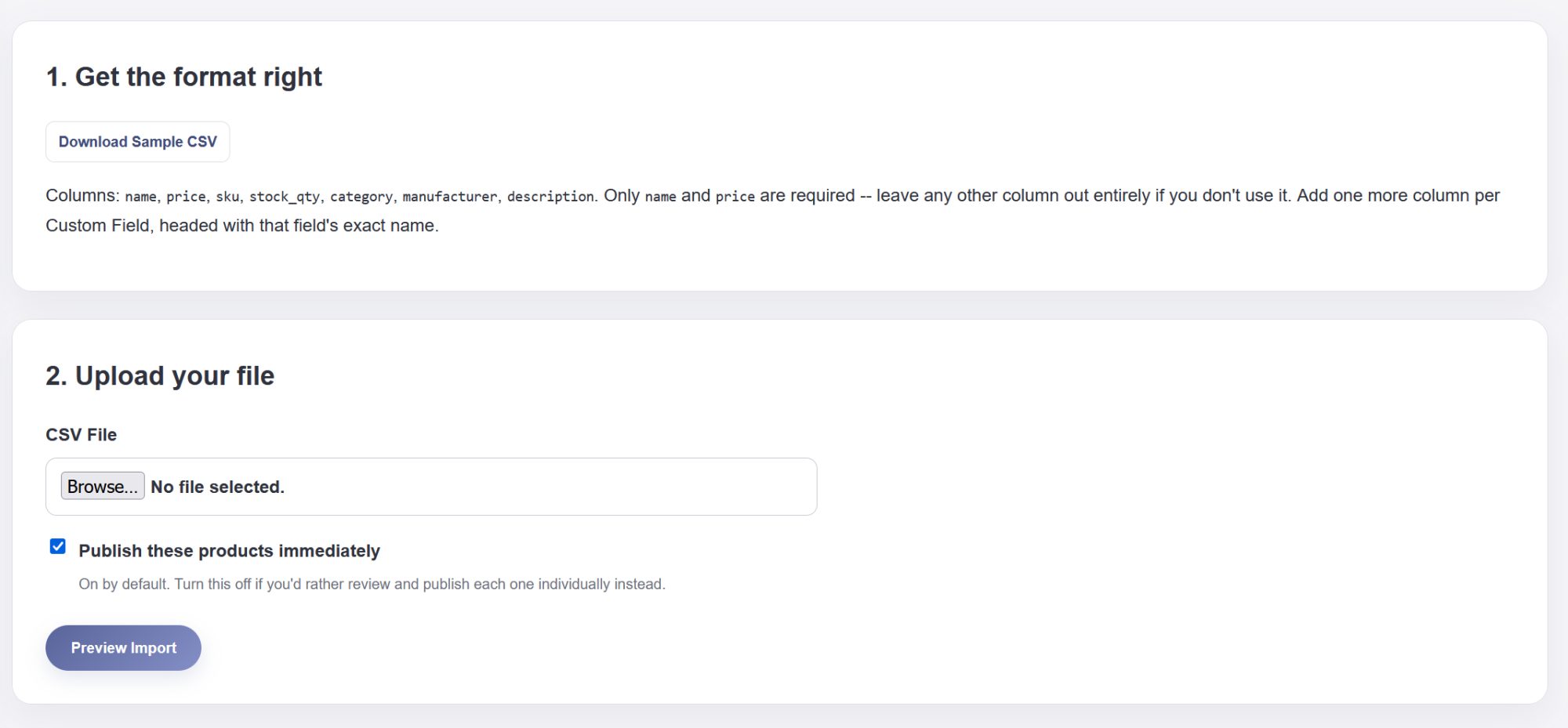
What the file needs
Go to Store -> Bulk Import (CSV) and download the sample file to see the expected columns. Only name and price are actually required -- sku, stock_qty, category, manufacturer, and description are all optional, and any column you do not use can be left out of the file entirely. A column whose header matches one of your Custom Fields by name (like "Author") is picked up automatically too.
The editable preview
After uploading, you land on a preview where every field can still be changed before anything is saved -- Name, Price, SKU, and Stock are plain editable boxes, while Category, Manufacturer, and Return Policy are real dropdowns. This is the easiest way to fix up a spreadsheet that did not get every category name to match exactly, since you do not have to retype anything in the file itself -- just pick the right one from the list.
A "Choose" button on each row opens the same photo picker used everywhere else on your site, so a whole batch of products can get their photos without visiting each one's own edit page afterward.
Nothing saves until Confirm Import
Every edit on the preview saves instantly to a temporary holding area, but no product actually exists on your site until you click Confirm Import at the bottom. A row with a real problem (a missing name, a price that is not a number) is clearly marked and simply skipped when you confirm -- everything else still imports.
Draft or Published
The upload step has a Publish these products immediately checkbox, on by default. Turn it off if you would rather review a batch before any of it goes live, or use the per-row Status dropdown on the preview to publish just a few items immediately while the rest come in as drafts.