
SEO and the Sitemap
Search titles, the sitemap, redirects, broken links, and social share images
Search titles and descriptions, per page
Each page has its own Search Result Title and Search Result Description under its Page Settings -> SEO Settings. Leave either blank and Your Shop Space falls back to the page Title automatically, so nothing ever shows up blank in search results.
Filling in what is missing, all at once
Go to Configuration -> SEO & Sitemap. The page shows how many published pages are missing a title or description, with a Fill In Missing SEO Info button that writes a reasonable one for each automatically, pulled from the page is own content -- a fast way to cover everything at once, which you can still edit individually afterward.
The sitemap
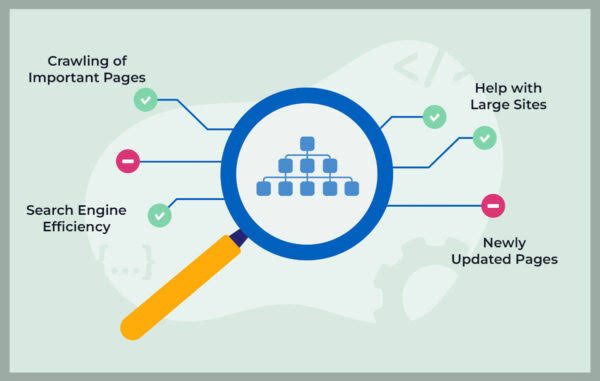
A sitemap at /sitemap.xml is generated and kept up to date automatically -- every published page, plus content from any turned-on app (Blog posts, Learning Center articles, Testimonials once you have at least one published, and more). You never edit this file directly or need to resubmit it after adding content.
Redirects: keeping old links working
- Go to Configuration -> SEO & Sitemap -> Redirects & 404s.
- If you rename a page is address in Page Settings, a redirect from the old address to the new one is added for you automatically -- nothing to do here for that case.
- To add one by hand (for example, an old printed flyer pointing at an address that no longer exists), enter the old From address and the new To address, and click Add Redirect.
- Each redirect shows how many times it has actually been used, so you can see which ones matter.
Finding broken links
The same page tracks real 404s -- addresses someone actually visited that did not resolve to anything, with how many times and where they came from. Automated scans and bots are filtered out, so this list stays focused on genuine broken links worth fixing. Click Redirect This next to any entry to turn it into a working redirect in one step, or Dismiss to drop one that is not worth acting on.
Social Share Image
Each page can have its own Social Share Image under Page Settings -> SEO Settings -- the picture shown when that page is link is shared on Facebook, Twitter/X, iMessage, or similar. A live preview card shows roughly how the shared link will look as you set the title, description, and image.